Google Find My Device Complete Beginner Guide (2026)
Losing your smartphone can be stressful. Your photos, contacts, emails, banking apps, and personal files are all stored in one place. Fortunately, Google Find My Device makes it much easier to locate and secure your Android phone if it is lost or stolen.
In this complete beginner guide, you will learn what Google Find My Device is, how it works, how to set it up, and the best ways to protect your Android device in 2026.
What Is Google Find My Device?
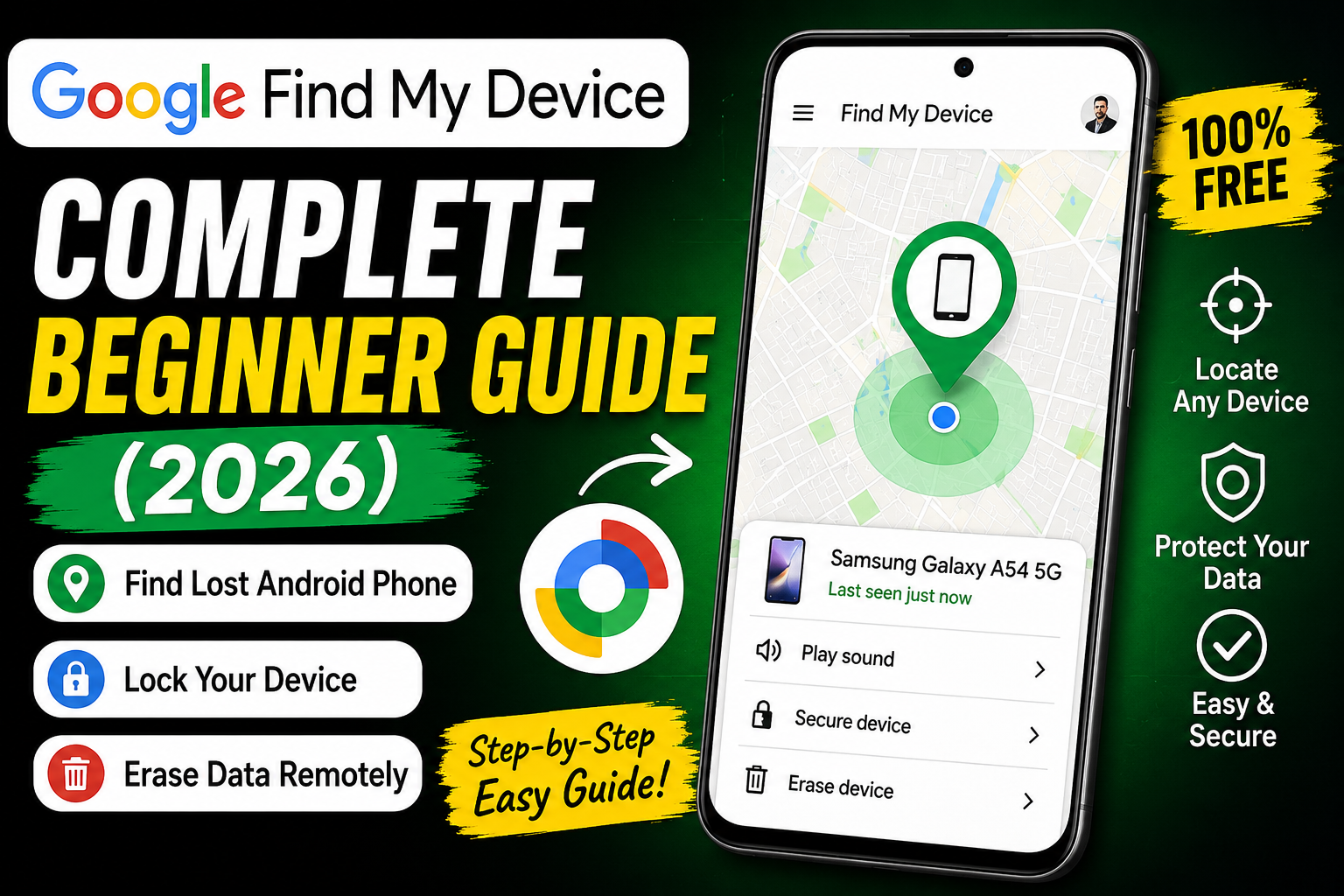
Google Find My Device is a free security service from Google that helps Android users locate, secure, and manage their devices remotely. As long as your device is connected to your Google account and has location services enabled, you can use Find My Device to track its location.
Besides helping you find your phone, the service lets you play a sound, lock your device, or erase your personal data if you cannot recover it.
Since Google includes this feature directly in Android, you do not need to install extra security software on most modern devices.
Key Features of Google Find My Device
Google Find My Device offers several useful features for protecting your smartphone.
Locate Your Device
First, you can view your phone’s approximate location on a map.
Play a Sound
Even if your phone is on silent mode, Find My Device will make it ring for several minutes.
Lock Your Phone
If you lose your phone in a public place, you can remotely lock it immediately.
Erase Your Data
Finally, if you believe you cannot recover your phone, you can erase all your personal information remotely.
How to Set Up Google Find My Device
Setting up Google Find My Device only takes a few minutes.
Step 1
Open Settings on your Android phone.
Step 2
Sign in with your Google account if you have not already done so.
Step 3
Enable Location Services on your device.
Step 4
Open the Find My Device settings and make sure the feature is turned on.
Step 5
Keep your internet connection active whenever possible for accurate tracking.
Once these steps are complete, your device will be ready if you ever need to locate it.
How to Find Your Lost Android Phone
If your phone goes missing, follow these simple steps.
- Open Google Find My Device on another phone, tablet, or computer.
- Sign in with the same Google account used on your lost phone.
- Select your missing device.
- View its current or last known location.
- Choose whether to play a sound, lock the phone, or erase its data.
This entire process usually takes only a few minutes.
Tips for Better Device Security
Although Google Find My Device is powerful, combining it with good security habits provides even better protection.
Use a Strong Screen Lock
Choose a secure PIN, password, or fingerprint instead of a simple swipe lock.
Enable Two Factor Authentication
Adding two factor authentication to your Google account gives your personal information an extra layer of protection.
Keep Android Updated
Software updates often include important security improvements and bug fixes.
Back Up Your Data
Regular cloud backups ensure your important files remain safe even if your phone cannot be recovered.
Common Problems and Easy Fixes
Sometimes Google Find My Device may not show your phone correctly. Fortunately, most problems have simple solutions.
Device is offline
Wait until the phone connects to the internet. The last known location may still appear.
Location is unavailable
Check that Location Services are enabled on the phone.
Device does not appear
Verify that you are signed in with the correct Google account.
Tracking is inaccurate
Move to an open area and allow GPS to update for better location accuracy.
Why Google Find My Device Is Worth Using
Many Android users never think about phone security until something goes wrong. However, enabling Google Find My Device takes only a few minutes and can save valuable time, money, and personal information later.
Whether you accidentally leave your phone at a restaurant or lose it while traveling, the service provides simple tools to help you recover or secure your device quickly.
Frequently Asked Questions
Is Google Find My Device free?
Yes. Google provides Find My Device at no additional cost for Android users.
Can I use it without the internet?
Your phone generally needs an internet connection to provide live updates. However, you may still see its last known location.
Does it work on all Android phones?
It works on most Android devices that support Google Play Services and are connected to a Google account.
Can I erase my phone remotely?
Yes. You can remotely erase all personal data if you believe the device cannot be recovered.
Conclusion
Overall, Google Find My Device is one of the best free security tools for Android users in 2026. Moreover, it helps you find a lost phone, lock it remotely, and erase sensitive data whenever necessary. Most importantly, you can protect your personal information before it falls into the wrong hands. Therefore, enable Google Find My Device today and enjoy greater peace of mind wherever you go.